Empowering PEOPLE | Inspiring INNOVATION | Harmonising TECHNOLOGY

Power App for Simplified Time Management & Approvals

Simplifying Time Management for Small Businesses

TimeCap is a Microsoft Power Apps solution designed to streamline employee time tracking and approvals. Powered by Microsoft Dataverse, it provides a secure, centralized platform for capturing, managing, and exporting time entries with full audit trails and compliance safeguards.

Users can log time individually or in bulk, view their entries in both list and calendar formats, and automate exports for payroll or reporting. Managers can easily review, approve, or reject timesheets with full visibility into team activity, while SLA notifications ensure submissions are always on time.

Built for organizations that value data consistency and control, TimeCap integrates seamlessly into Microsoft 365—bringing together security, scalability, and simplicity in one app.

Target Customers

TimeCap is purpose-built for small and growing organizations that need reliable time management without enterprise complexity:

Professional Services Firms – Legal, accounting, IT, and marketing agencies tracking billable hours.

Construction & Trade Businesses – Electricians, plumbers, and contractors managing time across sites.

Freelancers & Micro-Agencies – Collaborative teams needing shared, secure time tracking.

Nonprofits & Community Organizations – Tracking hours for projects, programs, or grant reporting.

Startups & Small Businesses – Seeking scalable, compliant time management tools built on Microsoft Power Apps.

Key Capabilities

Centralized Dataverse Storage

Ensures data integrity and access control.

Role-Based Access

Supports secure manager/employee workflows.

Time Entry Options

Time Entry Options – Capture individual or bulk entries quickly.

Multi-View Interface

Choose between list or calendar view.

Approval Management

Review, approve, or reject timesheets with comments.

SLA Alerts & Monitoring

Automatically warn users of submission delays.

Automated Exports

Configure weekly or monthly exports for reporting.

User Access Management

Manage employee and manager roles within the app.

Key Features

Flexible Entry

Add or edit entries individually or in bulk.

Date Locking

Prevent changes to finalized periods.

Export Options

Manual or automated Excel exports.

SLA Setup

Configure weekly/monthly alerts for compliance.

Approval Dashboard

Monitor pending and completed approvals.

Multi-Period Tracking

Weekly and monthly summaries with color-coded indicators.

Review Approved Timesheets

Reopen or audit completed entries.

Mobile-Friendly Interface

Capture and manage time on the go.

Key Benefits

Accuracy & Auditability – Structured data entry with Dataverse tracking.

Faster Approvals – Role-based workflows and reminders reduce delays.

Compliance & Control – SLA warnings and date locking ensure discipline.

Time Savings – Automated exports and reporting simplify admin tasks.

Visibility – Calendar and dashboard views highlight performance trends.

Scalability – Built on Power Platform, ready to grow with your business.

Integration – Works natively with Microsoft 365 and Power Automate.

Experience TimeCap in action. 

See how TeamGenix can help your organization simplify time tracking and ensure compliance with our fixed-price Power Platform delivery model. 

Detailed Breakdown of Product Features and Guide:

TimeCap User Guide

Introduction

Welcome to TimeCap!

This comprehensive guide is designed to help you navigate and make the most of our app’s powerful features. Whether you’re capturing timesheet entries one at a time or in bulk, approving timesheet entries, exporting entries, setting up SLA Warnings or automating exports, this guide will provide you with step-by-step instructions and tips to streamline your timekeeping processes.

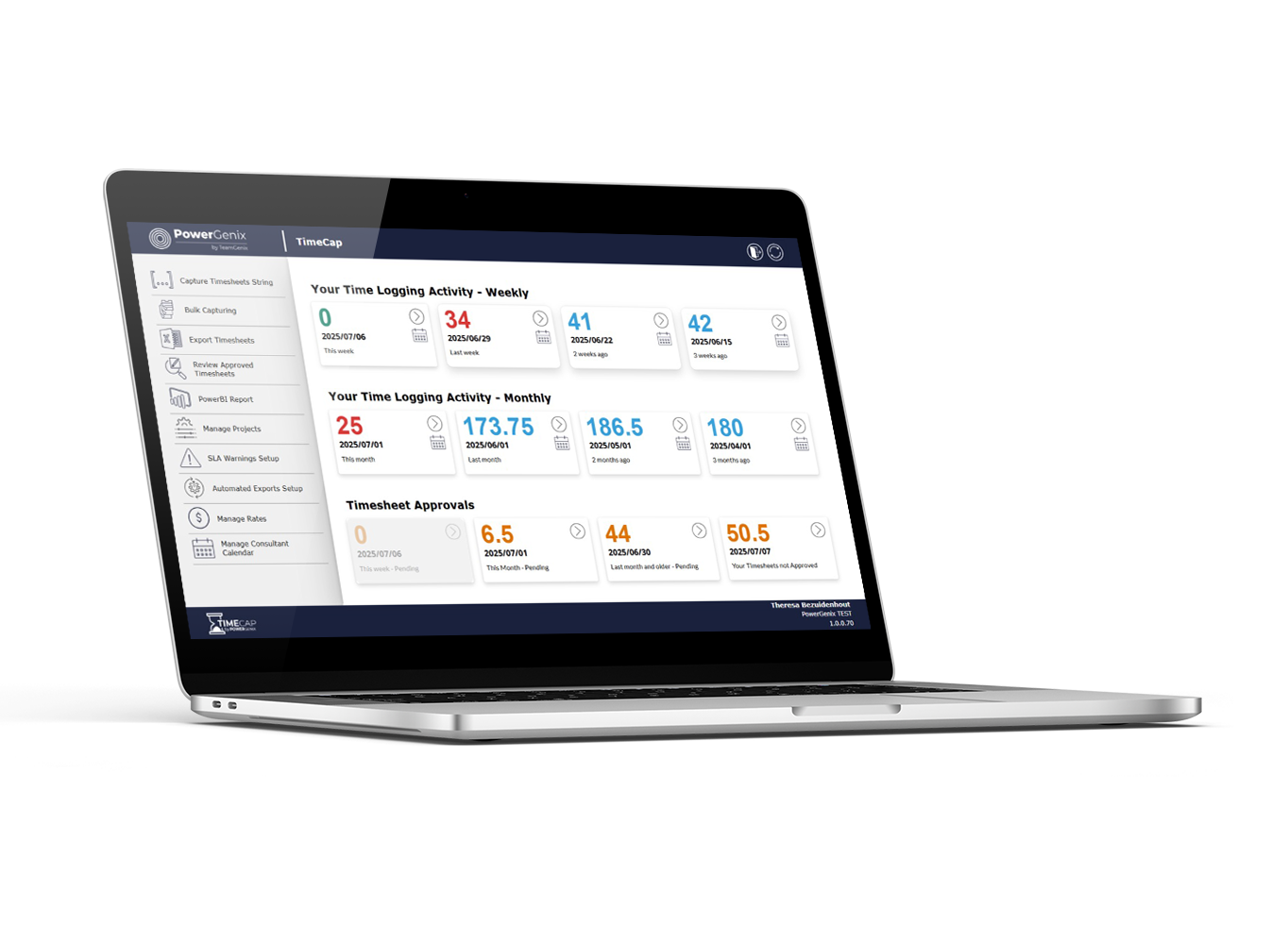
a. Dashboard – Your Timesheet Logging Activity – Weekly
Display the total number of hours recorded per week over the past four weeks, including the start date of each week, for the logged-on user. Color coding has been applied based on a 40-hour workweek: red for totals less than 40 hours, blue for exactly 40 hours, and green for more than 40 hours.

b. Dashboard – Your Timesheet Logging Activity – Monthly
Display the total number of hours recorded per month over the past four months, including the start date of each month for the logged-on user. Color coding has been applied based on a standard of 8 working hours per weekday up to the current date: red for totals below the expected hours, blue for totals equal to the expected hours, and green for totals exceeding the expected hours.

c. Timesheet Entries – List View
Navigate to the list view for the selected week / month’s timesheet entries of the logged-on user.

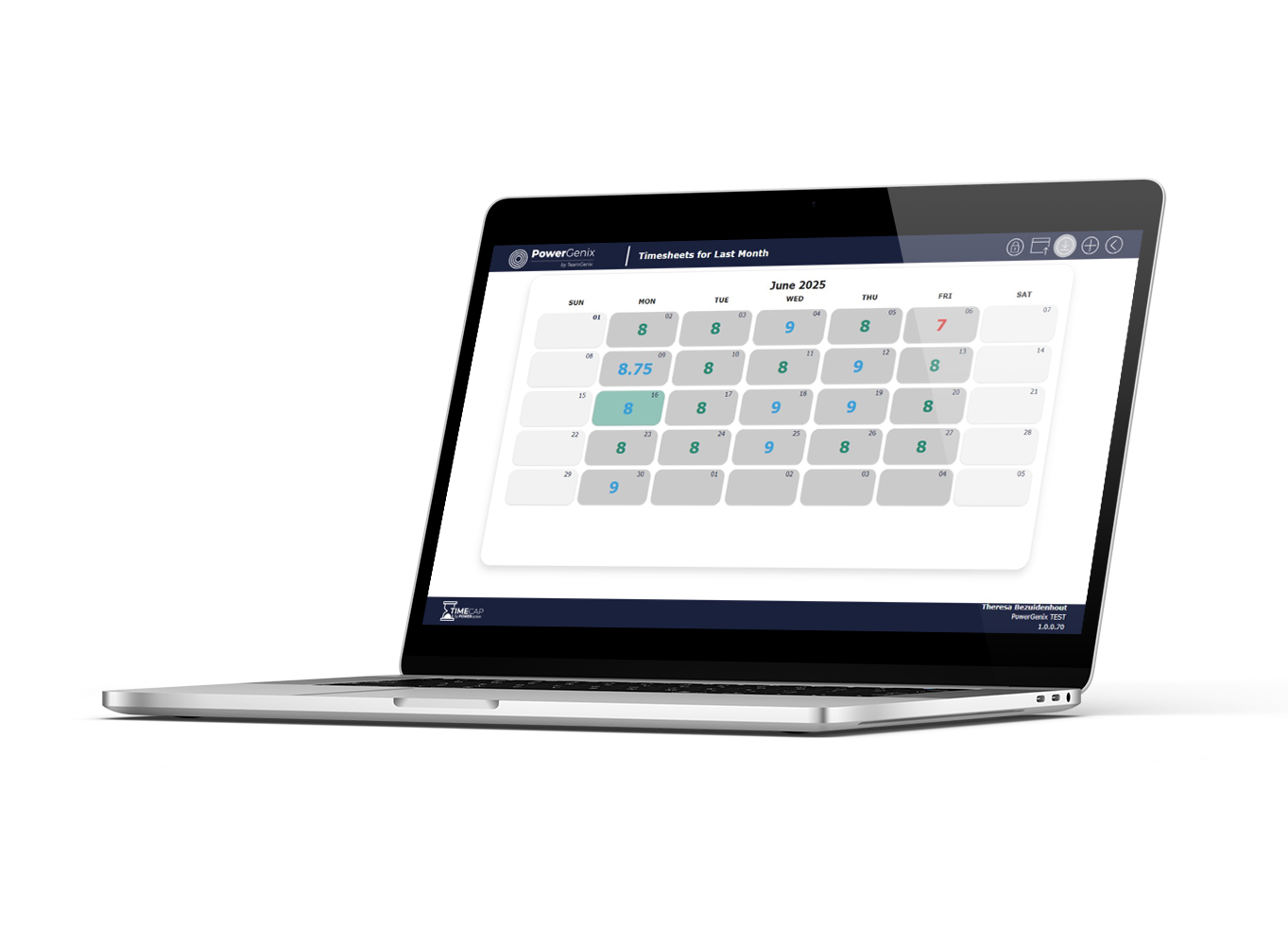
d. Timesheet Entries – Calendar View
Navigate to the calendar view for the selected week / month’s timesheet entries of the logged-on user.

e. Dashboard – Timesheet Approvals
Display the number of hours recorded that are pending approval, where the logged-on user is the designated approver. Broken down into categories of current week, current month and prior. Additionally, there is a display of the total number of hours submitted by the logged-on user that has not yet been approved.

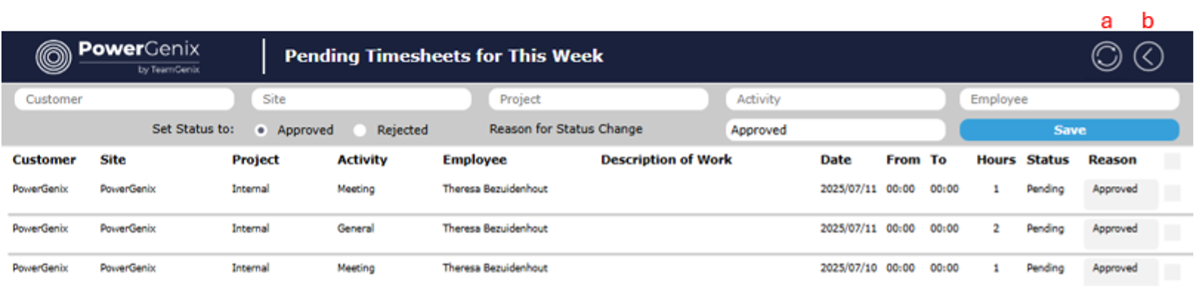
f. Approve / Reject Timesheet Entries
Navigate to the list view for the selected period of timesheet entries the logged-on user is the designated approver.

g. Navigation Menu
The navigation menu allows you to access different section of the app. See numbers 3 to 10 of this document.

From the Home screen click on the button to navigate to the list or calendar view of the relevant period.

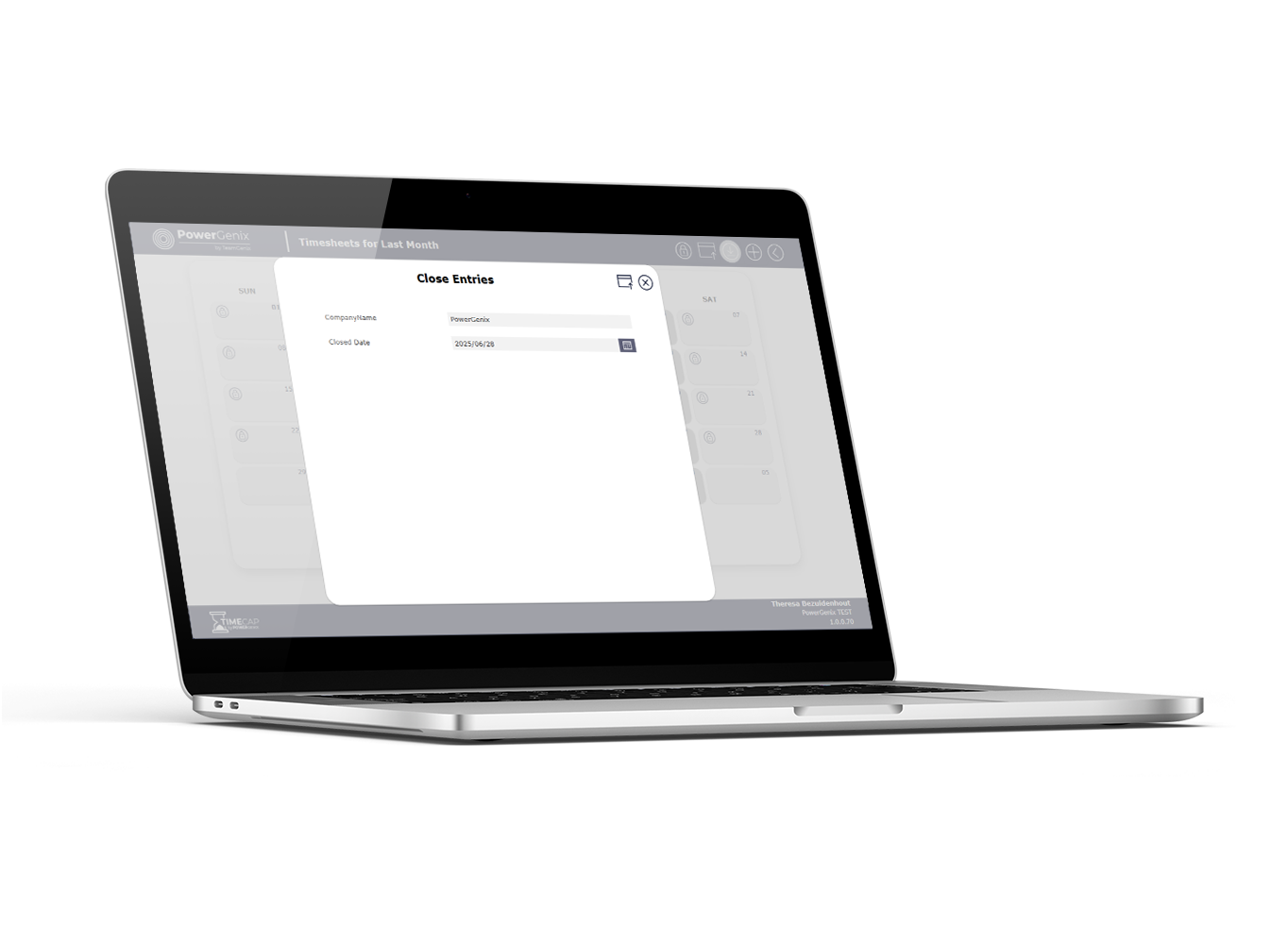
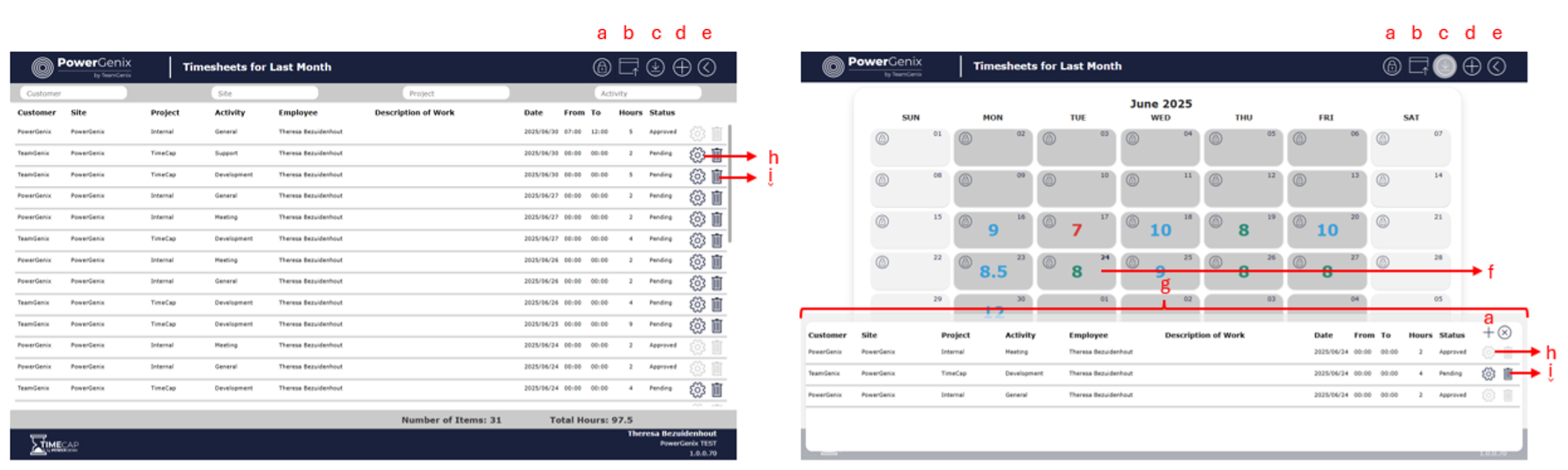
a. Lock period for editing
Select to open form to enter date to prevent users from entering or editing time on or before the selected date.

b. Confirm capturing complete for week
Select to send confirmation to the logged-on user’s manager that timesheets have been captured for the current week. (A lock will appear in the block of every day on or before the ‘lock’ date in the calendar view. In the list view the edit and delete buttons will be disabled.)

c. Download entries to Excel
Select to export the list of entries to Excel, this option is only available in the list view.

d. Add a new entry
Select for the form to be displayed to add a new entry

e. Back
Select to navigate back to the home screen

f. Click to view detail for selected date
In the calendar view to see details captured for a specific date, click on the date block for the list to be displayed. This is only for the calendar view.

g. Detail pop-up
The pop up displays a list of entries for the selected date. This is only for the calendar view.

h. Edit existing entries
Click to open the form to edit the selected entry

i. Delete existing entries
Click to delete the selected entry

From the Home screen click on the Bulk Capturing button in the navigation section. Once on the screen click the Add a row button to start capturing. Set the status to the appropriate value and add description if required. Select the relevant entries and click Save.

a. Refresh
Click to refresh list of entries

b. Back
Click to navigate back to the home screen

From the Home screen, click on the Bulk Capturing button in the navigation section. Once on the screen, click the Add a row button to start capturing.

a. Submit for approval
Once all rows have been captured, saved and locked for editing, click to submit entries for approval

b. Add a new row
Click to add a new row

c. Back
Click to navigate back to the home screen

d. Save row
Click to save selected row for later editing or submitting

e. Lock row for editing
Click to lock selected row for editing before submitting

f. Delete row
Click to delete selected row

From the Home screen click on Export Timesheets in the navigation menu to view list of timesheet entries. Managers will see all the timesheet entries of their direct reports and employees will only see their own entries.

a. Export to Excel
Export the list of entries as per the period selected, and filters entered to Excel which will open automatically.

b. Reset filters and refresh
Clear all filters and refresh list of entries

c. Back
Navigate back to home screen.

From the Home screen, click on Review Approved Timesheets in the navigation menu to view the list of approved timesheet entries. If approved entries need to be rejected, find them in the list, select and click save.

a. Reset filters and refresh
Clear all filters and refresh list

b. Back
Navigate back to the home screen

From the Home screen click on SLA Warning Setup in the navigation menu to set up automated warning messages for SLA agreements. Warnings can be set up for weekly or monthly warnings.

a. Reset filters and refresh
Click to clear all filters and refresh list

b. Add new warning
Click to create a new warning with all relevant information.

c. Back
Click to navigate back to the home screen

d. Edit Warning
Click to edit selected warning setup

e. Delete Warning
Click to delete selected warning setup

From the Home screen, click on Automated Export Setup to navigate to the set-up for automated exports. Exports can be set up for monthly or weekly exports.

a. Reset filters and refresh
Click to clear all filters and refresh list

b. Add new Export
Click to create a new export with all relevant information.

c. Back
Click to navigate back to the home screen

d. Edit Export
Click to edit selected export setup

e. Delete Export
Click to delete the selected export setup

From the Home screen, click on Manage User Access in the navigation menu to manage user access. Users need to be set up as an Employee or Manager.

a. Refresh
Click to refresh list

b. Add new user
Click to create a new user with all relevant information.

c. Back
Click to navigate back to the home screen

d. Edit user
Click to edit selected user setup

e. Delete user
Click to delete selected user setup

Power Platform Environment

Step 1: Install the solution

Create a Power Platform environment (with Dataverse) to host the solution if one does not already exist. Refer to the Create and manage environments in the Power Platform admin centre page for guidance.

Set up a new service user account in Microsoft Entra and grant this account system administrator privileges within the Power Platform environment.

Use the service account to install the “TimeCap” solution from the Microsoft Marketplace.

Step 2: Configure the solution   

Go to the “TimeCap” installed solution in managed solutions and open it.

Expand the table node and click on the table “TimeCapConfig”.

Add the column AppLink, EnvironmentName, TechEmail to the table view.

Enter the Environment Name in the EnvironmentName field in the table.

Enter the email address of the person that should be notified if a flow fails in the TechEmail field in the table

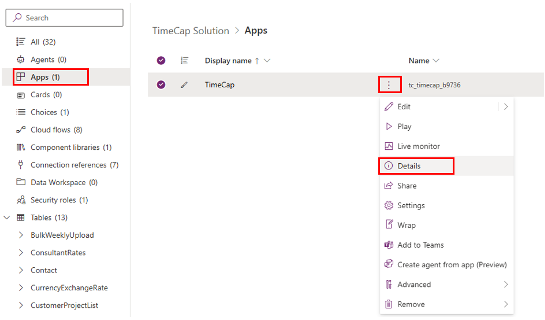
Select Apps and then choose TimeCap

Click on the vertical ellipse button and click on the “Details” menu item, see the image below

Expand the table node and click on the table “TimesheetClosureCompany”.

Add the column CompanyName and ClosedDate to the table view.

Enter the Company Name in the CompanyName field in the table.

Enter the Closed Date, this date acts as a cutoff for time entry submissions. No entries can be created before or on this date.

Step 3: Setup users 

In Microsoft 365 admin center create a security group

Add all users that need access to the app in the group as members

In the Power Platform admin center, navigate to the environment where the solution is and click on See all under Security roles.

Search for TimeCap Users Security Role, click on the ellipse and click on Members and add the security created in the previous step.

Navigate to the installed TimeCap solution within managed solutions and open it.

Select Apps and then choose TimeCap

Click on the vertical ellipse button and click on the “Share” menu item, see the image below

Enter the name of the security group created earlier.

Please note the following:   

The user will need a Power App Premium license to access the app.

The account that will be the owner of the workflow will need to have a blank Excel workbook in the OneDrive root folder called ExcelTemplate.xlsx

 Contact Us 

If you have any questions or suggestions about the Terms and Conditions, please do not hesitate to contact the Service Provider at info@powergenix.net

Privacy Policy:

  1. Introduction

TeamGenix Group Limited (“we”, “our”, “us”) is committed to protecting your privacy. This Privacy Policy explains how we collect, use, disclose, and safeguard your information when you use our TimeCap App (the “App”), available on the Microsoft Marketplace. Please read this privacy policy carefully. If you do not agree with the terms of this privacy policy, please do not access the App.

  1. Information We Collect

We may collect and process the following types of information:

  • Personal Data: Identifiable information such as your name, email address, phone number, and any other information you provide when using the App.
  • Usage Data: Information about how you use the App, such as access times, pages viewed, your IP address, and information about the device you use to access the App.
  • Customer Data: Data imported into the App by users, which may include personal or business information
  1. How We Use Your Information

We use the information we collect in the following ways:

  • To Provide and Maintain the App: To ensure the App functions as intended and to provide necessary support.
  • To Improve the App: To understand how users interact with the App and to make improvements.
  • To Communicate with You: To send administrative information, updates, security alerts, and support messages.
  • For Legal Compliance: To comply with legal obligations, resolve disputes, and enforce our agreements.
  1. Sharing Your Information

We do not sell, trade, or otherwise transfer your personal data to outside parties except as described below:

  • Service Providers: We may share your information with third-party service providers who perform services on our behalf, such as hosting, data analysis, and customer service.
  • Legal Requirements: We may disclose your information if required to do so by law or in response to valid requests by public authorities.
  • Business Transfers: If we are involved in a merger, acquisition, or asset sale, your information may be transferred as part of that transaction.
  1. Data Security

We implement reasonable administrative, technical, and physical security measures to protect your information from unauthorized access, use, alteration, and disclosure. However, no method of transmission over the Internet or method of electronic storage is completely secure.

  1. Data Retention

We will retain your personal data only for as long as necessary to fulfill the purposes outlined in this Privacy Policy unless a longer retention period is required or permitted by law.

  1. Your Data Protection Rights

Depending on your location, you may have the following rights regarding your personal data:

  • Access: Request access to your personal data.
  • Correction: Request correction of inaccurate or incomplete personal data.
  • Deletion: Request deletion of your personal data.
  • Objection: Object to our processing of your personal data.
  • Restriction: Request restriction of processing your personal data.
  • Portability: Request transfer of your personal data to another service provider.

To exercise these rights, please contact us at info@teamgenix.global.

  1. Changes to This Privacy Policy

We may update this Privacy Policy from time to time. We will notify you of any changes by posting the new Privacy Policy on this page. You are advised to review this Privacy Policy periodically for any changes.

  1. Contact Us

If you have any questions about this Privacy Policy, please contact us at: info@teamgenix.global.

Terms & Conditions:

These terms and conditions applies to the FinPlicity App (hereby referred to as “Application”) that was created by TeamGenix Group Limited (hereby referred to as “Service Provider”) as a Commercial service.

Upon downloading or utilizing the Application, you are automatically agreeing to the following terms. It is strongly advised that you thoroughly read and understand these terms prior to using the Application. Unauthorized copying, modification of the Application, any part of the Application, or our trademarks is strictly prohibited.

Any attempts to extract the source code of the Application, translate the Application into other languages, or create derivative versions are not permitted.

All trademarks, copyrights, database rights, and other intellectual property rights related to the Application remain the property of the Service Provider.

The Service Provider is dedicated to ensuring that the Application is as beneficial and efficient as possible. As such, they reserve the right to modify the Application or charge for their services at any time and for any reason.

The Service Provider assures you that any charges for the Application or its services will be clearly communicated to you. The Application stores and processes personal data that you have provided to the Service Provider in order to provide the Service. It is your responsibility to maintain the security of your device and access to the Application.

The Service Provider strongly advise against jailbreaking or rooting your device, which involves removing software restrictions and limitations imposed by the official operating system of your device. Such actions could expose your device to malware, viruses, malicious programs, compromise your device’s security features, and may result in the Application not functioning correctly or at all.

Please note that the Application utilizes third-party services that have their own Terms and Conditions. Below are the links to the Terms and Conditions of the third-party service providers used by the Application:

• Microsoft

Please be aware that the Service Provider does not assume responsibility for certain aspects. Some functions of the Application require an active internet connection, which can be Wi-Fi or provided by your mobile network provider.

The Service Provider cannot be held responsible if the Application does not function at full capacity due to lack of access to Wi-Fi or if you have exhausted your data allowance.

If you are using the application outside of a Wi-Fi area, please be aware that your mobile network provider’s agreement terms still apply. Consequently, you may incur charges from your mobile provider for data usage during the connection to the application, or other third-party charges.

By using the application, you accept responsibility for any such charges, including roaming data charges if you use the application outside of your home territory (i.e., region or country) without disabling data roaming.

If you are not the bill payer for the device on which you are using the application, they assume that you have obtained permission from the bill payer. Similarly, the Service Provider cannot always assume responsibility for your usage of the application. For instance, it is your responsibility to ensure that your device remains charged.

If your device runs out of battery and you are unable to access the Service, the Service Provider cannot be held responsible. In terms of the Service Provider’s responsibility for your use of the application, it is important to note that while they strive to ensure that it is updated and accurate at all times, they do rely on third parties to provide information to them so that they can make it available to you.

The Service Provider accepts no liability for any loss, direct or indirect, that you experience as a result of relying entirely on this functionality of the application.

The Service Provider may wish to update the application at some point. The application is currently available as per the requirements for the operating system (and for any additional systems they decide to extend the availability of the application to) may change, and you will need to download the updates if you want to continue using the application.

The Service Provider does not guarantee that it will always update the application so that it is relevant to you and/or compatible with the particular operating system version installed on your device.

However, you agree to always accept updates to the application when offered to you. The Service Provider may also wish to cease providing the application and may terminate its use at any time without providing termination notice to you.

Unless they inform you otherwise, upon any termination, (a) the rights and licenses granted to you in these terms will end; (b) you must cease using the application, and (if necessary) delete it from your device.

Changes to These Terms and Conditions The Service Provider may periodically update their Terms and Conditions.

Therefore, you are advised to review this page regularly for any changes. The Service Provider will notify you of any changes by posting the new Terms and Conditions on this page.

These terms and conditions are effective as of December 2024. Contact Us If you have any questions or suggestions about the Terms and Conditions, please do not hesitate to contact the Service Provider at info@teamgenix.global.


Support:

Please log a ticket for App support or queries

Contact Us