

Streamlining Fixed Asset Management with Microsoft Dynamics 365
Asset counting is a comprehensive solution designed to streamline the process of fixed asset accountability.
Integrated with Microsoft Dynamics 365 Finance and Operations, this tool leverages advanced technology and data capabilities to ensure accurate, efficient, and effective counting, transferring and scrapping of fixed assets. With features such as mobile scanning, automatic transferring of fixed assets and automated scarping journal creation with detailed tracking, Asset Counting transforms the way organizations manage their fixed assets.
Asset Counting provides organizations with a powerful solution to manage their fixed assets accurately and efficiently. By integrating cutting-edge technology and data analytics, it ensures real-time asset tracking, reduces errors, and enhances overall operational efficiency.
Pain Points the Product is Solving
Manual Errors: Reduces errors associated with manual asset counting and data entry.
Inefficiency: Streamlines the asset counting process, saving time and resources.
Asset Mismanagement: Ensures accurate tracking and management of assets across various locations.
Compliance Issues: Enhances compliance with financial regulations and reporting requirements.
Lack of Visibility: Provides real-time visibility into asset status and location.
Target Customers
Financial Controllers
Asset Managers
IT Managers
Operations Managers
Compliance Officers
Target Industries
Manufacturing
Retail
Healthcare
Education
Government
Utilities
Transportation
Key Capabilities
Counting Journal: Creation The Journal Counting feature of Asset Counting enhances the asset management process by providing detailed descriptions, assigning clear responsibilities, and offering flexible options for asset counting. With its integration into Microsoft Dynamics 365 Finance and Operations, this feature ensures accurate, efficient, and reliable asset management.
Label Printing: The Label Printing feature in Asset Counting enhances asset management by providing a streamlined, customizable solution for creating and printing asset labels. With seamless integration into Microsoft Dynamics 365 Finance and Operations, this feature ensures that assets are accurately labeled, facilitating better tracking and management across the organization.
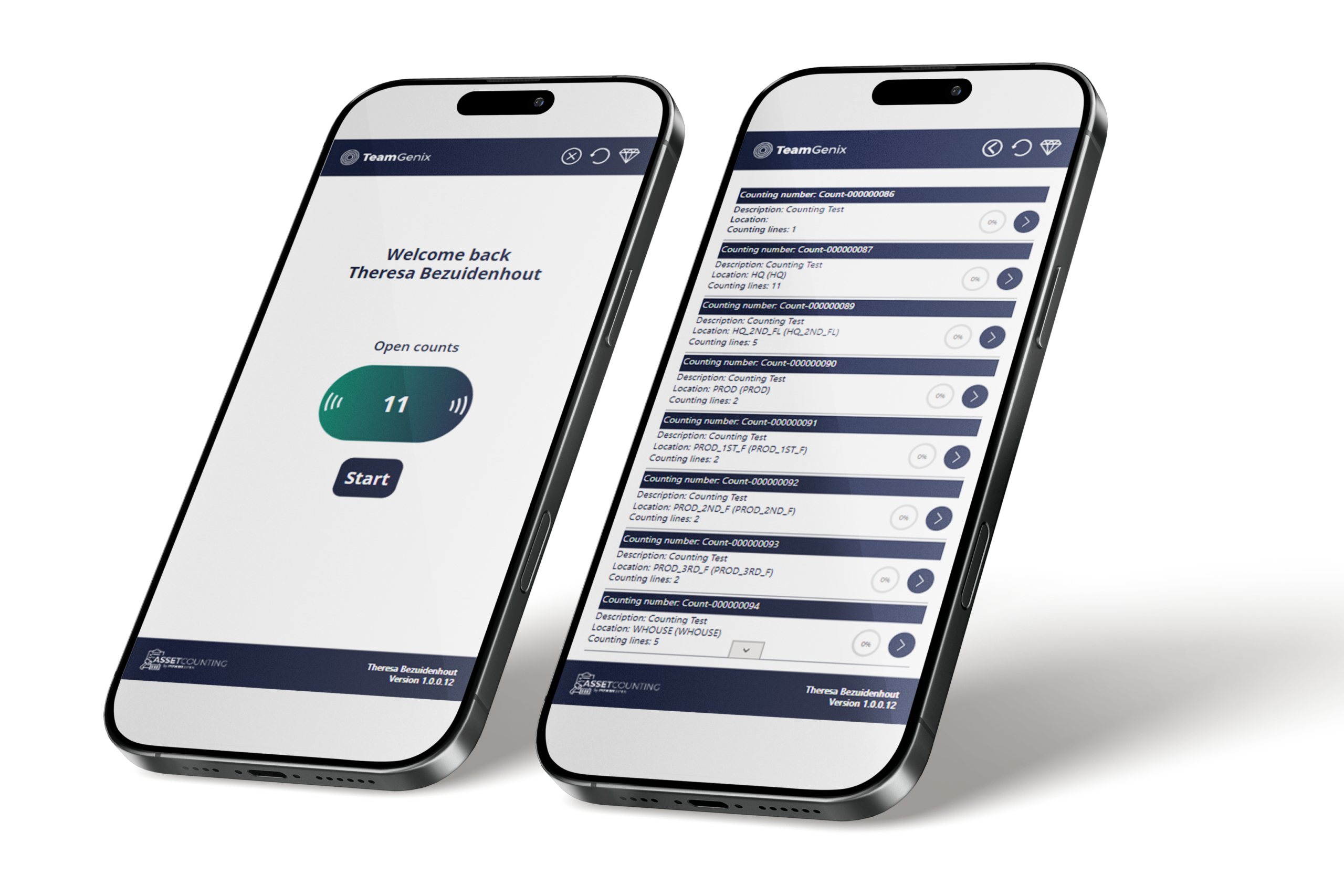
Asset Counting App: The Asset Counting App is a Power App designed to enhance the fixed asset counting process by leveraging mobile device capabilities, including scanning and real-time updates. While fixed asset counting can be managed within Microsoft Dynamics 365 Finance and Operations, this app offers a more streamlined, mobile-friendly approach.
Asset Counting Posting: The Asset Counting Posting capability in Asset Counting ensures that all relevant fixed asset details are accurately updated following the completion of a counting journal. This process helps maintain up-to-date and precise asset records within Microsoft Dynamics 365 Finance and Operations.
Asset Counting History: The Asset Counting History capability provides a detailed, comprehensive record of all asset-counting activities. This feature is essential for tracking and tracing changes over time, ensuring transparency and accountability in asset management
Mobile Integration: Supports mobile scanning of asset barcodes and QR codes.
Blind Count and Allow Add: Options to enhance flexibility during the counting process.
Validation and Restrictions: Ensures data integrity and compliance.
Customizable Labels: Enables printing of custom labels for assets.
Detailed Tracking: Comprehensive tracking of asset status, location, and history.
Key Features
Improved Accuracy: Reduces manual errors and ensures accurate asset data.
Enhanced Efficiency: Automates and streamlines the asset counting process.
Real-time Visibility: Provides up-to-date information on asset status and location.
Regulatory Compliance: Ensures adherence to financial reporting and compliance requirements.
Cost Savings: Reduces operational costs associated with manual asset management.
Key Benefits
Annual Asset Audits: Streamline and automate the annual asset audit process.
Asset Relocation: Track and manage assets during relocation to new locations.
Compliance Reporting: Ensure accurate, timely reporting to meet regulatory requirements.
Inventory Management: Maintain accurate inventory records and asset counts.
Asset Lifecycle Management: Track and manage assets throughout their lifecycle, from acquisition to disposal.
Use Cases
Target Personas
Financial Controller
Responsibilities: Overseeing financial reporting and compliance, managing budgets.
Challenges: Ensuring accurate financial records, managing audits and compliance.
Goals: Improve the accuracy of financial data, streamline audit processes, and ensure regulatory compliance.
Asset Manager
Responsibilities: Managing and tracking physical assets, conducting asset audits.
Challenges: Accurate tracking of assets, reducing manual errors, and maintaining compliance.
Goals: Enhance asset tracking accuracy, reduce audit time and errors, and ensure asset data integrity.
IT Manager
Responsibilities: Overseeing IT infrastructure and asset management, implementing technology solutions.
Challenges: Managing IT assets, integrating new technologies, and ensuring data accuracy.
Goals: Improve IT asset management, streamline asset tracking, and integrate efficient technology solutions.
Operations Manager
Responsibilities: Managing day-to-day operations, optimizing resource utilization.
Challenges: Ensuring efficient operations, managing physical assets, and reducing operational costs.
Goals: Enhance operational efficiency, ensure accurate asset tracking, and reduce costs.
Compliance Officer
Responsibilities: Ensuring regulatory compliance, managing audits and reporting.
Challenges: Maintaining compliance, managing audit processes, and ensuring accurate data.
Goals: Ensure regulatory compliance, streamline audit and reporting processes, and maintain data accuracy.
Ready to take control of your fixed assets?
Eliminate manual errors, gain real-time visibility, and simplify compliance with Asset Counting — the smarter way to manage fixed assets inside Microsoft Dynamics 365.
Contact us to schedule a demo or learn more about how Asset Counting can transform your asset management process.
Email: info@teamgenix.global
Region: Available globally with dedicated support in New Zealand, Australia, and South Africa.
- Overview
- User Guide
- Configuration Guide
- Downloads
- Privacy Policy
- Terms & Conditions
Asset Counting Overview:
Asset counting is a comprehensive solution designed to streamline the process of fixed asset accountability. Integrated with Microsoft Dynamics 365 Finance and Operations, this tool leverages advanced technology and data capabilities to ensure accurate, efficient, and effective counting, transferring and scrapping of fixed assets. With features such as mobile scanning, automatic transferring of fixed assets and automated scarping journal creation with detailed tracking, Asset Counting transforms the way organisations manage their fixed assets.
Asset Counting provides organisations with a powerful solution to manage their fixed assets accurately and efficiently. By integrating cutting-edge technology and data analytics, it ensures real-time asset tracking, reduces errors, and enhances overall operational efficiency.
Pain Points the Product is Solving
- Manual Errors: Reduces errors associated with manual asset counting and data entry.
- Inefficiency: Streamlines the asset counting process, saving time and resources.
- Asset Mismanagement: Ensures accurate tracking and management of assets across various locations.
- Compliance Issues: Enhances compliance with financial regulations and reporting requirements.
- Lack of Visibility: Provides real-time visibility into asset status and location.
Target Customers
- Financial Controllers
- Asset Managers
- IT Managers
- Operations Managers
- Compliance Officers
Target Industries
- Manufacturing
- Retail
- Healthcare
- Education
- Government
- Utilities
- Transportation
Key Capabilities:
Counting Journal Creation
The Journal Counting feature of Asset counting enhances the asset management process by providing detailed descriptions, assigning clear responsibilities, and offering flexible options for asset counting. With its integration into Microsoft Dynamics 365 Finance and Operations, this feature ensures accurate, efficient, and reliable asset management.
Label Printing
The Label Printing feature in Asset counting enhances asset management by providing a streamlined, customizable solution for creating and printing asset labels. With seamless integration into Microsoft Dynamics 365 Finance and Operations, this feature ensures that assets are accurately labeled, facilitating better tracking and management across the organization.
Asset Counting App
The Asset Counting App is a Power App designed to enhance the fixed asset counting process by leveraging mobile device capabilities, including scanning and real-time updates. While fixed asset counting can be managed within Microsoft Dynamics 365 Finance and Operations, this app offers a more streamlined, mobile-friendly approach.
Asset Counting posting
The Asset Counting Posting capability in Asset counting ensures that all relevant fixed asset details are accurately updated following the completion of a counting journal. This process helps maintain up-to-date and precise asset records within Microsoft Dynamics 365 Finance and Operations.
Asset counting history
The Asset Counting History capability Asset counting provides a detailed and comprehensive record of all asset counting activities. This feature is essential for tracking and tracing changes over time, ensuring transparency and accountability in asset management
Key Features:
Mobile Integration:
Supports mobile scanning of asset barcodes and QR codes.
Blind Count and Allow Add:
Options to enhance flexibility during the counting process.
Validation and Restrictions:
Ensures data integrity and compliance.
Customisable Labels:
Enables printing of custom labels for assets.
Detailed Tracking:
Comprehensive tracking of asset status, location, and history.
Key Benefits:
Improved Accuracy:
Reduces manual errors and ensures accurate asset data.
Enhanced Efficiency:
Automates and streamlines the asset counting process.
Real-time Visibility:
Provides up-to-date information on asset status and location.
Regulatory Compliance:
Ensures adherence to financial reporting and compliance requirements.
Cost Savings:
Reduces operational costs associated with manual asset management.
Use Cases
- Annual Asset Audits: Streamline and automate the annual asset audit process.
- Asset Relocation: Track and manage assets during relocation to new locations.
- Compliance Reporting: Ensure accurate and timely reporting for regulatory compliance.
- Inventory Management: Maintain accurate inventory records and asset counts.
- Asset Lifecycle Management: Track and manage assets throughout their lifecycle, from acquisition to disposal.
Target Personas:
1. Financial Controller
Responsibilities: Overseeing financial reporting and compliance, managing budgets.
Challenges: Ensuring accurate financial records, managing audits and compliance.
Goals: Improve accuracy of financial data, streamline audit processes, ensure regulatory compliance.
2. Asset Manager
Responsibilities: Managing and tracking physical assets, conducting asset audits.
Challenges: Accurate tracking of assets, reducing manual errors, maintaining compliance.
Goals: Enhance asset tracking accuracy, reduce audit time and errors, ensure asset data integrity.
3. IT Manager
Responsibilities: Overseeing IT infrastructure and asset management, implementing technology solutions.
Challenges: Managing IT assets, integrating new technologies, ensuring data accuracy.
Goals: Improve IT asset management, streamline asset tracking, integrate efficient technology solutions.
4. Operations Manager
Responsibilities: Managing day-to-day operations, optimizing resource utilization.
Challenges: Ensuring efficient operations, managing physical assets, reducing operational costs.
Goals: Enhance operational efficiency, ensure accurate asset tracking, reduce costs.
5. Compliance Officer
Responsibilities: Ensuring regulatory compliance, managing audits and reporting.
Challenges: Maintaining compliance, managing audit processes, ensuring accurate data.
Goals: Ensure regulatory compliance, streamline audit and reporting processes, maintain data accuracy.
At a glance:


Contact Us
If you have any questions or suggestions about the Terms and Conditions, please do not hesitate to contact the Service Provider at qualitymanagementsupport@teamgenix.global
Asset Counting Features and Guide
Key Components of counting Journal Creation:
1. Journal Description
Purpose: Provides a detailed description that will appear on the counting journal header records and mobile app.
Benefit: Ensures clarity and consistency in journal entries, facilitating easier tracking and reference.
2. Mark Journal Ready to Count
Purpose: Changes the status of the journal to “Ready.” Only journals with status “Ready” and “In progress” can be updated using the asset counting app or the front-end forms.
Benefit: Controls the workflow and ensures that only prepared journals are processed, preventing premature or incomplete counts.
3. Assigned To
Purpose: Specifies the person responsible for executing the fixed asset count. If this field is blank, the journal will be assigned to the default user defined at the fixed asset location.
Benefit: Assigns clear responsibility, ensuring accountability and streamlined task management.
4. Create a Journal per Location
Purpose: Creates fixed asset counting journals grouped by asset location.
Benefit: Organizes journals by location, making it easier to manage and track assets in different areas.
5. Disable Quantity if 1
Purpose: Disables the quantity field when the asset quantity is 1.
Benefit: Simplifies the counting process by removing unnecessary fields and reducing the risk of errors.
6. Blind Count
Purpose: When selected, no journal lines are created, and “Allow add” is forced. As users count fixed assets, the assets are added to the counting journal.
Benefit: Provides a flexible counting approach, allowing assets to be added dynamically during the count.
7. Allow Add
Purpose: Enables the user to scan any asset against the counted location. If an asset is located in a different location, it will be moved to the counted location.
Benefit: Ensures assets are counted accurately and efficiently, even if their locations differ.
8. Validate Only
Purpose: When selected, users cannot change the responsible employee or condition, add notes, a serial number, or a photo. Once the asset number or barcode is entered or scanned, the count is automatically submitted to Microsoft Dynamics 365 Finance and Operations.
Benefit: Streamlines the counting process by reducing input requirements and ensuring quick, accurate submission.
9. Allow New Responsible
Purpose: Allows the user to select a new responsible employee for the counted fixed asset.
Benefit: Provides flexibility in updating asset management records, ensuring that responsibility assignments are current and accurate.
10. Allow New Condition
Purpose: Allows the user to select a new condition for the counted fixed asset.
Benefit: Ensures asset condition records are up-to-date, facilitating better asset management and maintenance planning.
11. Allow Notes
Purpose: Enables the user to enter notes for the counted fixed asset.
Benefit: Allows for detailed record-keeping and provides additional context for asset management decisions.
Steps to Enable Asset Label Printing:
1. Add the Label Printer
Integrate the label printer into Microsoft Dynamics 365 Finance and Operations using a document routing agent.
Ensure the printer is properly configured and recognized by the system.
2. Configure Custom Label Layout Data Source
Set up a custom label layout data source within the system.
Define the data that will be included in the label, such as asset ID, location, condition, and other relevant details.
3. Configure Label Layouts
Design and configure label layouts for each data source.
Customize the appearance and format of the labels to meet organizational standards and preferences.
4. Enable Custom Label Print Buttons
Activate the custom label print buttons on the fixed asset and fixed asset counting lines form.
Ensure that users can easily access and use these buttons to print labels as needed
Key Features of the Asset Counting App:
1. Welcome Screen
Description: Displays the number of open fixed asset counting journals assigned to the user.
Benefit: Provides users with a quick overview of their assigned tasks, helping them prioritize and manage their workload effectively.

2. List Screen
Description: Shows all open counting journals, including location and progress information.
Benefit: Offers a comprehensive view of all ongoing counting activities, allowing users to track progress and ensure timely completion.

3. Asset Scanning Screen
Description: Allows users to scan or enter the asset number or barcode. The system validates the asset and displays relevant information. In ‘validate only’ mode, the asset count is automatically submitted; otherwise, users can update asset details before submitting.
Benefit: Enhances accuracy and efficiency in asset counting by utilizing scanning technology and reducing manual entry errors.

4. Image Screen
Description: Enables users to capture a photo of the fixed asset.
Benefit: Provides visual documentation of assets, aiding in verification and record-keeping.

5. Fixed Asset Information Screen
Description: Allows users to access detailed information about the fixed asset.
Benefit: Ensures that all necessary information is readily available, supporting informed decision-making during the counting process.

6. Count Information Screen
Description: Displays a list of all the fixed assets counted for the current fixed asset journal the user is working on.
Benefit: Helps users keep track of counted assets, ensuring that no assets are missed and that the count is complete and accurate.

Key Updates During Asset Counting Posting:
1. Responsible Employee Update
Description: The responsible employee for a fixed asset will be updated if a new responsible employee was specified during the count.
Benefit: Ensures that the correct individual is accountable for each asset, improving asset management and accountability.
2. Condition Update
Description: The condition of the fixed asset will be updated if a new condition is specified during the count.
Benefit: Keeps asset condition records accurate, aiding in maintenance and replacement planning.
3. Location Update
Description: The location of the fixed asset will be updated if a new location was specified during the count.
Benefit: Ensures that the asset’s location information is current, facilitating easier tracking and management.
4. Image Update
Description: The image of the fixed asset will be updated if a new image was taken and the “Replace fixed asset image” parameter is selected during posting.
Benefit: Provides up-to-date visual records of assets, assisting in verification and condition assessment.
5. Transfer to New Financial Dimensions
Description: Fixed assets will be transferred to new financial dimensions based on the updated location, responsible employee, or a combination of both. This transfer only occurs if the “Auto transfer fixed asset” parameter is enabled.
Benefit: Ensures financial records reflect the latest asset information, supporting accurate financial reporting and management.
6. Creation of Scrap Journal
Description: A scrap journal will be created for fixed assets that are missing or marked as scrap based on the new condition if the “Create scrap journal” parameter is enabled.
Benefit: Facilitates the removal of assets that are no longer in use or have been lost, keeping asset records clean and accurate.
7. Approval Workflow
Description: Only approved fixed asset counting journals can be posted if an approval workflow has been configured.
Benefit: Adds a layer of control and oversight, ensuring that all updates are reviewed and authorized before being finalized.
Key Features of the Asset Counting History Capability:
1. Comprehensive Historical Data
Description: The asset counting history form displays all historical counting-related information, including new responsible employees, new conditions, new locations, image changes, serial number changes, notes, and counting status.
Benefit: Enables thorough tracking and tracing of all changes made during asset counts, ensuring a clear audit trail and facilitating accountability.
2. Accessible Records
Description: The counting history form is accessible from a selected fixed asset or under the inquiries and report section in the fixed asset module.
Benefit: Provides easy access to historical data, supporting efficient review and analysis of past asset counts.
Configuration Guide:
Detailed steps to import and configure Asset Counting Solution:
Import Solution into Power Platform Environment
Go to make.powerapps.com and sign in with your credentials
At the top right of the Power Apps portal, click on the environment name and select the environment where you want to import the solution.
In the left navigation pane, select Solutions. If you don’t see it, click on …More to find it.
Click on the Import a Solution button in the command bar.
On the Import a Solution page, click Browse to locate the compressed (.zip or .cab) file that contains the solution you want to import
Select the solution file and click Next. Information about the solution will be displayed.
By default, plugin steps and flows included in the solution will be imported in an active state. If you want them to be inactive, clear the Enable Plugin steps and flows included in the solution option.
You will be prompted to select the reference for each connection needed in the solution. If a connection doesn’t already exist, create a new one.
Click Import to start the import process. Once completed, you will see a confirmation message.
Configuration Information
Go to make.powerapps.com and sign in with your credentials
At the top right of the Power Apps portal, click on the environment name and select the environment where your solution is.
In the left navigation pane, select Solutions. If you don’t see it, click on …More to find it.
Click on the Managed tab
Browse and click on the name of the solution
Within the solution, go to Tables and select the table AssetCountingConfig
Click on the AssetCountingConfig table to display the columns
Click on Edit
Click + New Row to add a record (there should always be only one record)
Add data in the following columns
| CustomerLogoBase64 | The recommended specification for the logo is as follows: · Size: 165 x 40 · Writing in a light color i.e. white · Transparent background | Get base64 code of the logo: · Navigate to www.base64-image.de · Drag and drop logo image in the space provided, or click where indicated and browse for the image · Click on Show Code · Click on Select All · Click on Copy to Clipboard | Very long string starting with “data:image/png;base64,iVBORw0KGgoAAAANSUhEUgAAAcIAAACMCAYAAADvPantAAAACXBIW…..” |
| DataAreaID | This is the company code in D365 FinOps | USMF | |
| Audience | The application ID URI, which can be found by going to MS Entra Admin Centre | · Under Applications, select App Registrations · Select the Application · Under Essentials, copy the Application ID URI | https://d365fo-demodev.teamgenix.net |
| TenantID | The unique ID assigned to each organization, which can be found by going to MS Entra Admin Centre | · Under Applications, select App Registrations · Select the Application · Under Essentials, copy the Directory (tenant) ID | 78c8dc59-2c4a-4d18-b530-29cd3fd93291 |
| ClientID | Applications registered in MS 365 services gets a ClientID assigned, it can be found from MS Entra Admin Centre | · Under Applications, select App Registrations · Select the Application · Under Essentials, copy the Application (client) ID | 556eaf5d-1eba-4874-be11-96fad835c5d3 |
| Secret (Value) | A secret string that the application uses to prove its identity when requesting a token. The secret value can only be viewed immediately after creation. Copy the value and paste in the column in Dataverse | lk-8Q~5SR.5wL~qdfXMNVektF–9A0_Qchiv9c0. | |
| HTTP_URI | This link is need in the Submit Counting Results Parent Flow to trigger the Submit Counting Results Child Flow | · In the solution navigation pane, click on Cloud Flows · Select the Submit Counting Results Child Flow and click on Details in the command bar · Once the detail screen is open, click on Edit in the command bar · On the Edit screen, expand the Manual step (first step) and copy the link in the HTTP POST URL textbox |
Assign Security Role to Users
Navigate to Power Platform Admin Centre
In the left pane click on Environments
Click on the name of the relevant environment
In the Access section, click on See All under Security Roles
Search for and click on the 3 dots next Asset Counting Security
Click on Members
Click on Add people
Search for and select all relevant users
Click on Add
Please note the following:
The user will need a Power App Premium license to access the app.
Contact Us
If you have any questions or suggestions about the Terms and Conditions, please do not hesitate to contact the Service Provider at info@powergenix.net
Share Power App with users
Go to make.powerapps.com and sign in with your credentials
At the top right of the Power Apps portal, click on the environment name and select the environment where your solution is.
In the left navigation pane, select Solutions. If you don’t see it, click on …More to find it.
Click on the Managed tab
Browse and click on the name of the solution
In the solution navigation pane click on Apps
Select the App by clicking in the blank space next to the app name
In the command bar click on Share
Search for user, select and click in the dropdown to assign role
Click Share
Privacy Policy:
Privacy Policy:
- Introduction
TeamGenix Group Limited (“we”, “our”, “us”) is committed to protecting your privacy. This Privacy Policy explains how we collect, use, disclose, and safeguard your information when you use our FinPlicity App (the “App”), available on the Microsoft Marketplace. Please read this privacy policy carefully. If you do not agree with the terms of this privacy policy, please do not access the App.
Information We Collect
We may collect and process the following types of information:
- Personal Data: Identifiable information such as your name, email address, phone number, and any other information you provide when using the App.
- Usage Data: Information about how you use the App, such as access times, pages viewed, your IP address, and information about the device you use to access the App.
- Customer Data: Data imported into the App by users, which may include personal or business information
How We Use Your Information
We use the information we collect in the following ways:
- To Provide and Maintain the App: To ensure the App functions as intended and to provide necessary support.
- To Improve the App: To understand how users interact with the App and to make improvements.
- To Communicate with You: To send administrative information, updates, security alerts, and support messages.
- For Legal Compliance: To comply with legal obligations, resolve disputes, and enforce our agreements.
Sharing Your Information
We do not sell, trade, or otherwise transfer your personal data to outside parties except as described below:
- Service Providers: We may share your information with third-party service providers who perform services on our behalf, such as hosting, data analysis, and customer service.
- Legal Requirements: We may disclose your information if required to do so by law or in response to valid requests by public authorities.
- Business Transfers: If we are involved in a merger, acquisition, or asset sale, your information may be transferred as part of that transaction.
Data Security
We implement reasonable administrative, technical, and physical security measures to protect your information from unauthorized access, use, alteration, and disclosure. However, no method of transmission over the Internet or method of electronic storage is completely secure.
- Data Retention
We will retain your personal data only for as long as necessary to fulfill the purposes outlined in this Privacy Policy unless a longer retention period is required or permitted by law.
- Your Data Protection Rights
Depending on your location, you may have the following rights regarding your personal data:
- Access: Request access to your personal data.
- Correction: Request correction of inaccurate or incomplete personal data.
- Deletion: Request deletion of your personal data.
- Objection: Object to our processing of your personal data.
- Restriction: Request restriction of processing your personal data.
- Portability: Request transfer of your personal data to another service provider.
To exercise these rights, please contact us at info@teamgenix.global.
- Changes to This Privacy Policy
We may update this Privacy Policy from time to time. We will notify you of any changes by posting the new Privacy Policy on this page. You are advised to review this Privacy Policy periodically for any changes.
- Contact Us
If you have any questions about this Privacy Policy, please contact us at: info@teamgenix.global.
Terms & Conditions:
These terms and conditions applies to the Asset Counting App (hereby referred to as “Application”) for mobile devices that was created by TeamGenix Group Limited (hereby referred to as “Service Provider”) as a Commercial service.
Upon downloading or utilizing the Application, you are automatically agreeing to the following terms. It is strongly advised that you thoroughly read and understand these terms prior to using the Application. Unauthorized copying, modification of the Application, any part of the Application, or our trademarks is strictly prohibited.
Any attempts to extract the source code of the Application, translate the Application into other languages, or create derivative versions are not permitted.
All trademarks, copyrights, database rights, and other intellectual property rights related to the Application remain the property of the Service Provider.
The Service Provider is dedicated to ensuring that the Application is as beneficial and efficient as possible. As such, they reserve the right to modify the Application or charge for their services at any time and for any reason.
The Service Provider assures you that any charges for the Application or its services will be clearly communicated to you. The Application stores and processes personal data that you have provided to the Service Provider in order to provide the Service. It is your responsibility to maintain the security of your phone and access to the Application.
The Service Provider strongly advise against jailbreaking or rooting your phone, which involves removing software restrictions and limitations imposed by the official operating system of your device. Such actions could expose your phone to malware, viruses, malicious programs, compromise your phone’s security features, and may result in the Application not functioning correctly or at all.
Please note that the Application utilizes third-party services that have their own Terms and Conditions. Below are the links to the Terms and Conditions of the third-party service providers used by the Application:
- Microsoft
Please be aware that the Service Provider does not assume responsibility for certain aspects. Some functions of the Application require an active internet connection, which can be Wi-Fi or provided by your mobile network provider.
The Service Provider cannot be held responsible if the Application does not function at full capacity due to lack of access to Wi-Fi or if you have exhausted your data allowance.
If you are using the application outside of a Wi-Fi area, please be aware that your mobile network provider’s agreement terms still apply. Consequently, you may incur charges from your mobile provider for data usage during the connection to the application or other third-party charges. By using the application, you accept responsibility for any such charges, including roaming data charges if you use the application outside of your home territory (i.e., region or country) without disabling data roaming.
If you are not the bill payer for the device on which you are using the application, they assume that you have obtained permission from the bill payer. Similarly, the Service Provider cannot always assume responsibility for your usage of the application. For instance, it is your responsibility to ensure that your device remains charged.
If your device runs out of battery and you are unable to access the Service, the Service Provider cannot be held responsible. In terms of the Service Provider’s responsibility for your use of the application, it is important to note that while they strive to ensure that it is updated and accurate at all times, they do rely on third parties to provide information to them so that they can make it available to you.
The Service Provider accepts no liability for any loss, direct or indirect, that you experience as a result of relying entirely on this functionality of the application.
The Service Provider may wish to update the application at some point. The application is currently available as per the requirements for the operating system (and for any additional systems they decide to extend the availability of the application to) may change, and you will need to download the updates if you want to continue using the application.
The Service Provider does not guarantee that it will always update the application so that it is relevant to you and/or compatible with the particular operating system version installed on your device.
However, you agree to always accept updates to the application when offered to you. The Service Provider may also wish to cease providing the application and may terminate its use at any time without providing termination notice to you.
Unless they inform you otherwise, upon any termination, (a) the rights and licenses granted to you in these terms will end; (b) you must cease using the application, and (if necessary) delete it from your device.
Changes to These Terms and Conditions The Service Provider may periodically update their Terms and Conditions.
Therefore, you are advised to review this page regularly for any changes. The Service Provider will notify you of any changes by posting the new Terms and Conditions on this page.
These terms and conditions are effective as of August 2024. Contact Us If you have any questions or suggestions about the Terms and Conditions, please do not hesitate to contact the Service Provider at info@teamgenix.global.